
If you decided to participate in the iOS 14 or iPadOS 14 Apple beta software program but have found it a bit too buggy, you might want to remove iOS 14 beta from your iPhone or iPod and return to iOS 13. There's one major downside, though; you will have to restore your device from the iTunes or iCloud backup you made before installing the iOS 14 public beta. We recommend sticking with the iOS 14 public beta once you've installed it until iOS 14 is available to everyone. That way, you'll automatically receive updates to the beta that will (hopefully) fix the glitches you've been experiencing. Once the shipping version of iOS 14 is released, you will then be able to leave the beta program without restoring your device. If you're set on finding out how to downgrade from iOS 14, though, read on.
How to Unenroll from the iPadOS 14 & iOS 14 Apple Beta Software Program
Deleting the iOS beta profile will remove you from the beta program, but it will also stop automatic updates that fix glitches in the beta software. Also, if the public version of the beta software you downloaded is not available, your device will still be running the beta software after following this tip.
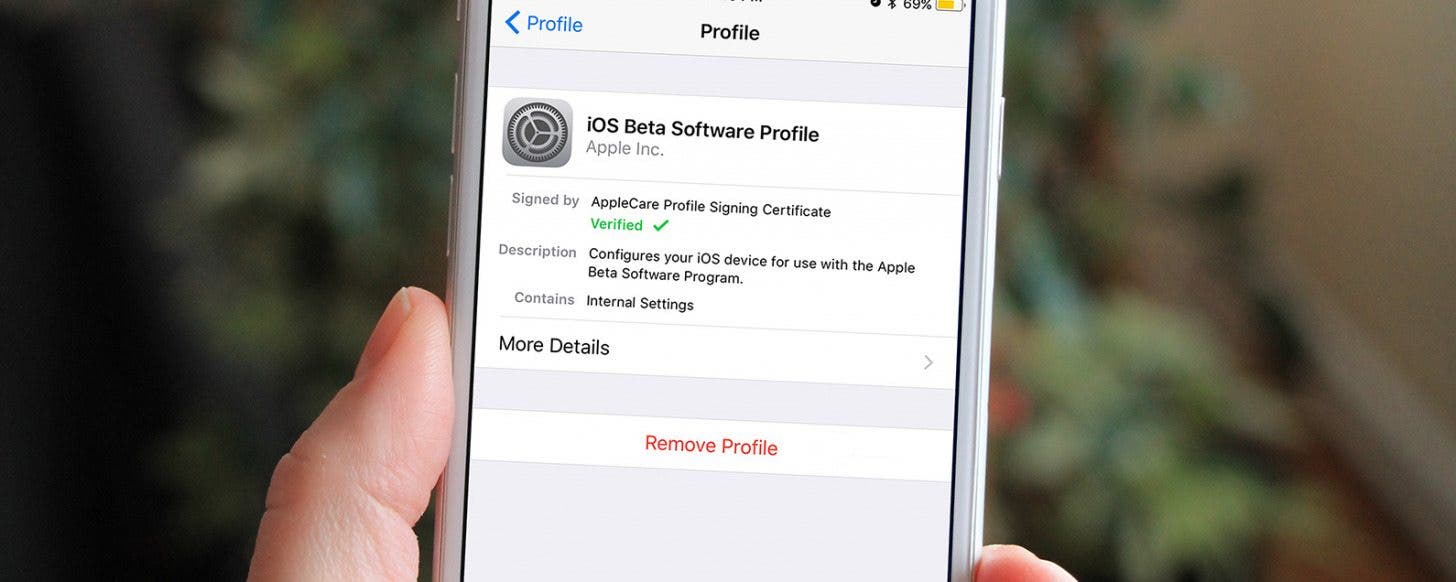
If you want to get rid of the beta software altogether, you'll need to follow all of these steps in order, or you will not be able to remove the beta software from your device. If you didn't do things in this order, you'll need to sign back into Apple's beta program website, enroll your device, and reinstall the iOS beta profile, then follow the steps below in this order to remove the beta software from your device before restoring from your backup. Trust us. We've tested this.
Delete the Beta Profile
- Open the Settings app on your iPhone or iPad.
- Tap General.
- Tap Profile.
- Tap the Configuration Profile for iOS 14 & iPadOS 14 Beta.
- Tap Remove Profile, then restart your device.
This lets Apple know you will no longer be beta testing iOS 14 or iPadOS 14. Your account will be removed from the Apple Beta Software Program, at least until the next time you decide to be a beta tester. Now, when the next non-beta version of iPadOS 14 or iOS 14 becomes available, you can install it, and the beta will be removed from your device. If you don't want to wait for the public version of iOS 14 to be released, you can restore your device. This is where the backup you made before downloading and installing the beta software comes in.
Step Two: Restore Your iPhone, iPod, or iPad
If you want to revert back to your previous public iOS, you will need to restore your device from an iTunes or iCloud backup you made before downloading the beta software. Once you've completed this process and restarted your device, you should be out of beta and back to iOS 13.
How to Restore Your iPhone or iPad & Revert to iOS 13 & iPadOS 13
If you want your phone or tablet back to how it was before you downloaded and installed iOS 14 beta and iPadOS 14 beta, you'll need to restore your device from the backup you made prior to your beta fling. To do this:
- Make sure your computer has the latest version of iTunes or MacOS.
- Connect your iPhone or iPad to your computer.
- Put your device in Recovery Mode.
For an iPad with Face ID: quickly press and release the Volume Up, then Volume Down button, then press and hold the Top button until your tablet enters Recovery Mode.
For an iPhone 8 and later: quickly press and release the Volume Up, then Volume Down button, then press and hold the Side button until your phone enters Recovery Mode.
For an iPhone 7, 7 Plus, or seventh-generation iPod Touch: press and hold the Sleep/Wake and Volume Down buttons at the same time until the Recovery Mode screen appears.
For iPhones 6s and earlier, sixth-generation iPod Touch and earlier, and iPads with Home buttons: simultaneously press and hold the Sleep/Wake button and Home button; continue holding until the Recovery Mode screen appears. - Click Restore, then Restore and Update, when the options appear on your computer screen.
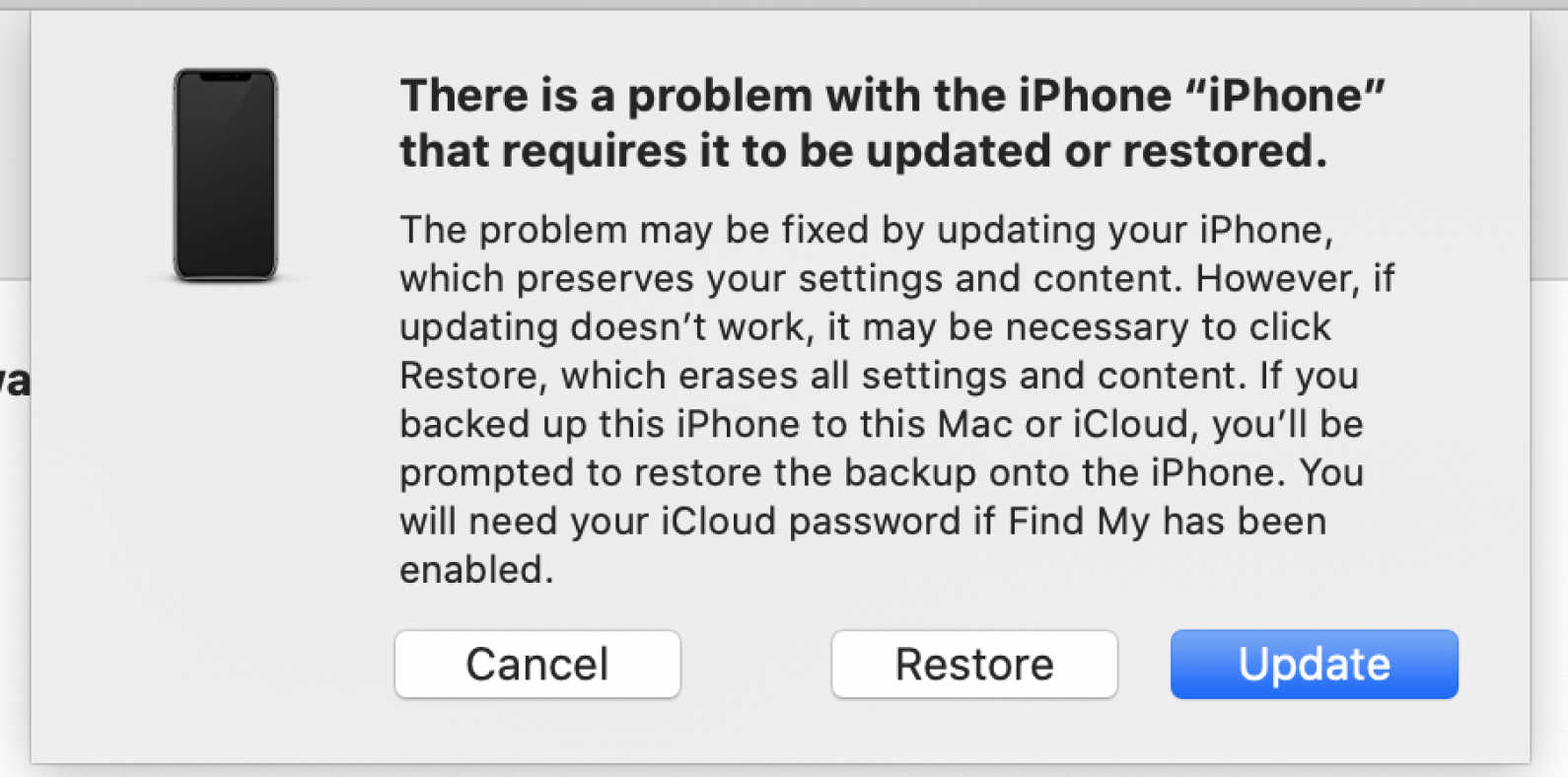
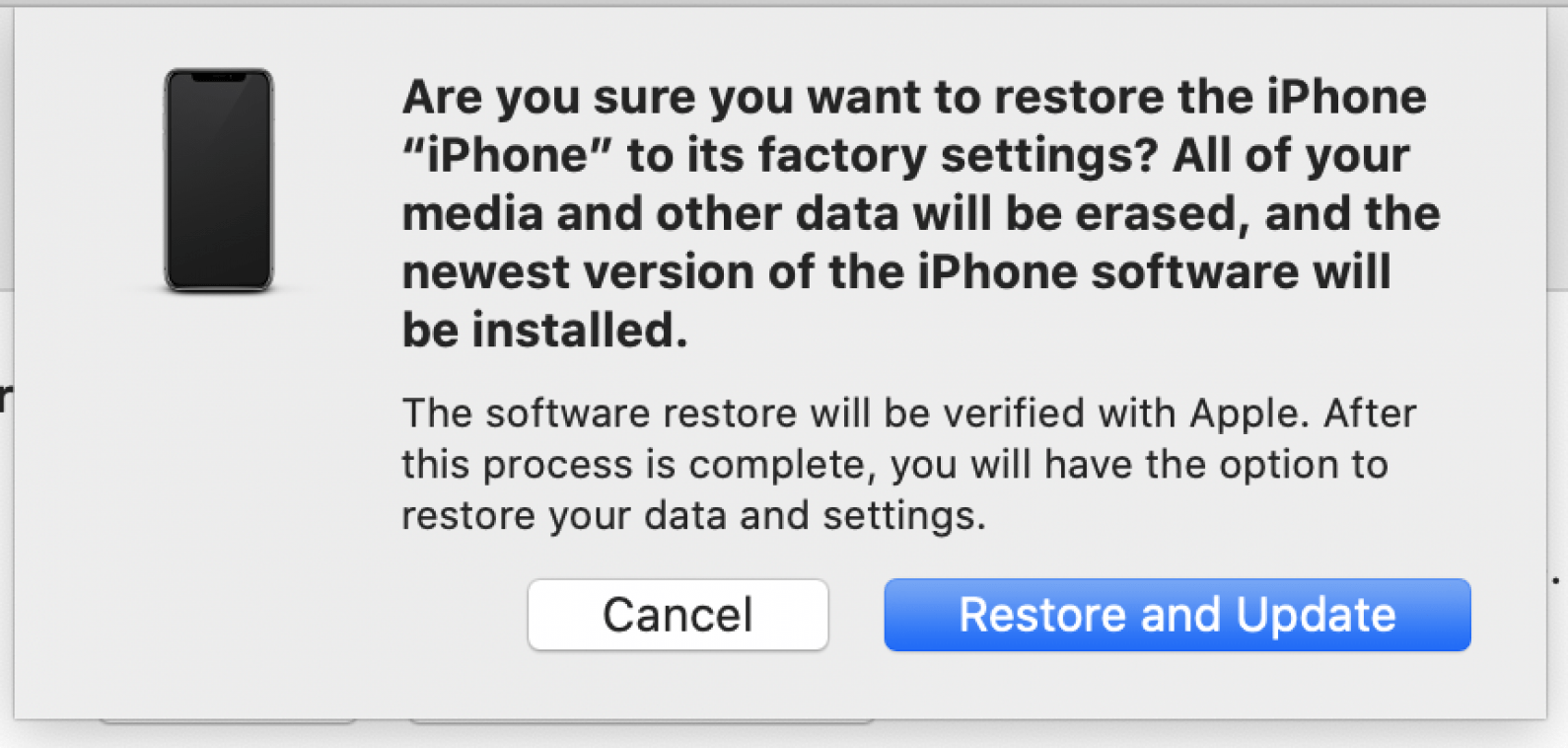
- Wait for the restore process to finish, and enter your Apple ID and password when required.
- Set up your phone or tablet with the archived backup you made before you downloaded and installed the beta software.


0 Comments